
How to Write Faster Email Replies on Mac with an AI Assistant
BlinkWrite suggests email replies from the conversation on your screen. You review a suggestion, press Tab to put it into your draft, and edit it before sending.
This guide covers setup and a complete reply example. The example uses Apple Mail. Gmail and Outlook are also supported.
Set up BlinkWrite on your Mac
You need an Apple silicon Mac with macOS 26 or later, an internet connection, and an active BlinkWrite trial or subscription.
- Download BlinkWrite.
- Open the downloaded file and drag BlinkWrite into Applications.
- Open BlinkWrite and click Get started.
- Follow the setup guide to enable BlinkWrite under System Settings → Privacy & Security → Accessibility.
- Follow the next step to enable Screen Recording. BlinkWrite restarts to apply this permission.
- Let setup finish, then sign up or log in through your browser.
- Return to BlinkWrite and finish the guide.
Accessibility lets BlinkWrite read text and insert suggestions you accept. Screen Recording helps it read text in apps that do not expose that text directly. Screen images stay on your Mac.
After setup, the BlinkWrite eye icon appears in the menu bar at the top of your screen. Its menu contains Settings and the pause controls. The getting-started guide explains each setup step.
Write an email reply, step by step
The illustrations below show a sample conversation in Mail. Actual suggestions depend on the conversation.
1. Open the email and click Reply
Place your cursor in the empty reply area. Keep the email you want to answer visible.
In this example, Maya asks:
Are you still interested in our product demo?
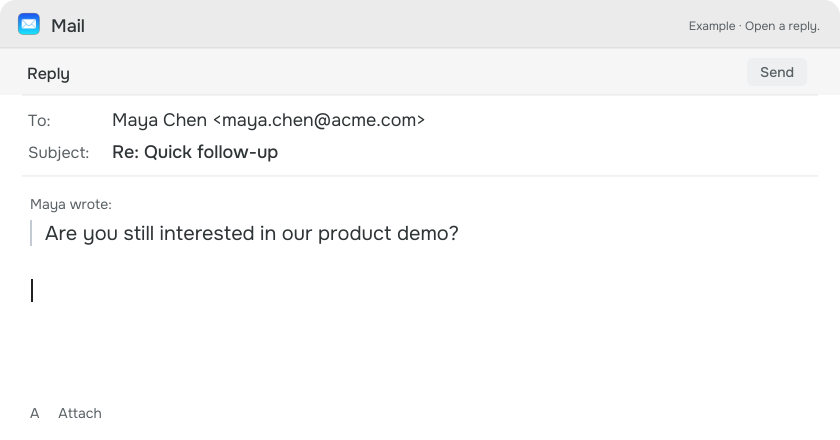
BlinkWrite uses the available conversation to suggest a reply. You do not need to copy the email into a separate chat window.
2. Review the suggested reply
The suggestion appears in a floating popup beside the reply area. At this point, your draft is still empty.
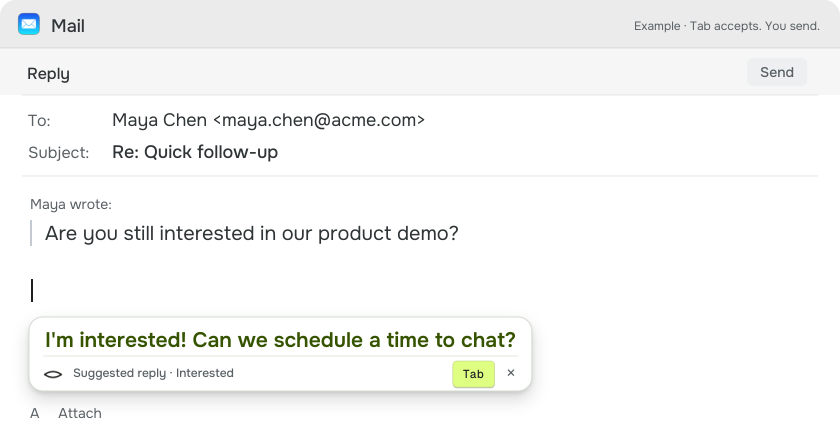
The example suggestion says:
I'm interested! Can we schedule a time to chat?
Before accepting, check that the reply matches your intent. BlinkWrite cannot decide whether you want the demo or know your availability from this email.
Sometimes the popup offers two replies with different positions, such as accepting or declining. Tab selects the first. Double-tap Tab selects the second.
3. Accept the reply or write your own
- If the suggestion matches your intent, press Tab to insert it into the draft.
- If you want to write your own reply, start typing to dismiss the suggestion.
- To close the popup, press Esc.
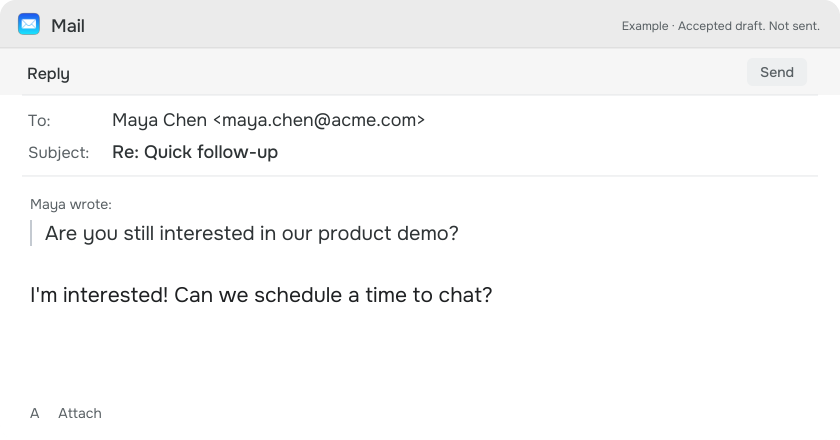
4. Add details and send when ready
Edit the draft to include any details the sender needs. If Tuesday at 2 p.m. works for you, you can change the reply to:
I'm interested! I'm available Tuesday at 2 p.m. Does that work for you?
Check the recipient, dates, and any commitments in your reply. Then use the email app’s Send button. BlinkWrite does not send the email for you.
Shorten a reply or change its tone
You can also start with your own draft. To rewrite the current paragraph:
- Place your cursor in the paragraph you want to change.
- Double-tap Tab to open rephrasing.
- Choose Shorten, Improve, Formal, Friendly, or Custom below the result.
- Review the new version.
- Press Tab to apply the revision, or Esc to keep your original text.
Rephrasing changes the current paragraph. It does not rewrite the whole email. The rephrasing guide explains the modes and custom instructions. For what to change and why, see how to make an email sound more professional.
Spelling corrections and sentence completions also appear as suggestions while you write. Each change needs your acceptance.
If no suggestion appears
- Check that BlinkWrite is running and has an active trial or subscription.
- Check that it is not paused for your email app, website, or the whole system.
- Check that Accessibility and Screen Recording permissions are enabled.
- For an automatic reply, click an empty reply area in a supported email app or website.
A reply is not appropriate for every email. For example, BlinkWrite can hold back when the last message in the conversation was yours. The troubleshooting guide covers other causes.
How BlinkWrite handles your email text
BlinkWrite masks supported types of personal information on your Mac before it sends text for a suggestion. It sends the masked draft and available context over an encrypted connection to its servers in the United States.
BlinkWrite runs its own AI models. It does not save your message text or suggestions, or use them to train models. Account and subscription records are separate and are stored to provide the service.
Masking does not guarantee that every identifying detail is removed. The privacy policy explains what BlinkWrite reads, transmits, and stores.