Suggestion types
BlinkWrite offers four kinds of help. They all draw on the same understanding of the context around your cursor, and they all use the same simple gestures: Tab to accept, Esc (or just keep typing) to dismiss.
Every suggestion appears in a small floating popup right next to where you're writing. It's a preview, not a change. Nothing is written into your text until you accept it.
What gets changed. Completions, corrections, and rephrasing are applied to the current paragraph only — the text block where your cursor is, up to the nearest hard line break. BlinkWrite still reads the full thread or document around you for context; it just never rewrites text outside the paragraph you're editing. See How it works for the full picture.
1. Proactive drafts
What it does. When you open a conversation and the reply box is empty, BlinkWrite reads the thread and drafts a complete reply for you, before you've typed a single word. The draft appears in a floating popup by your cursor.
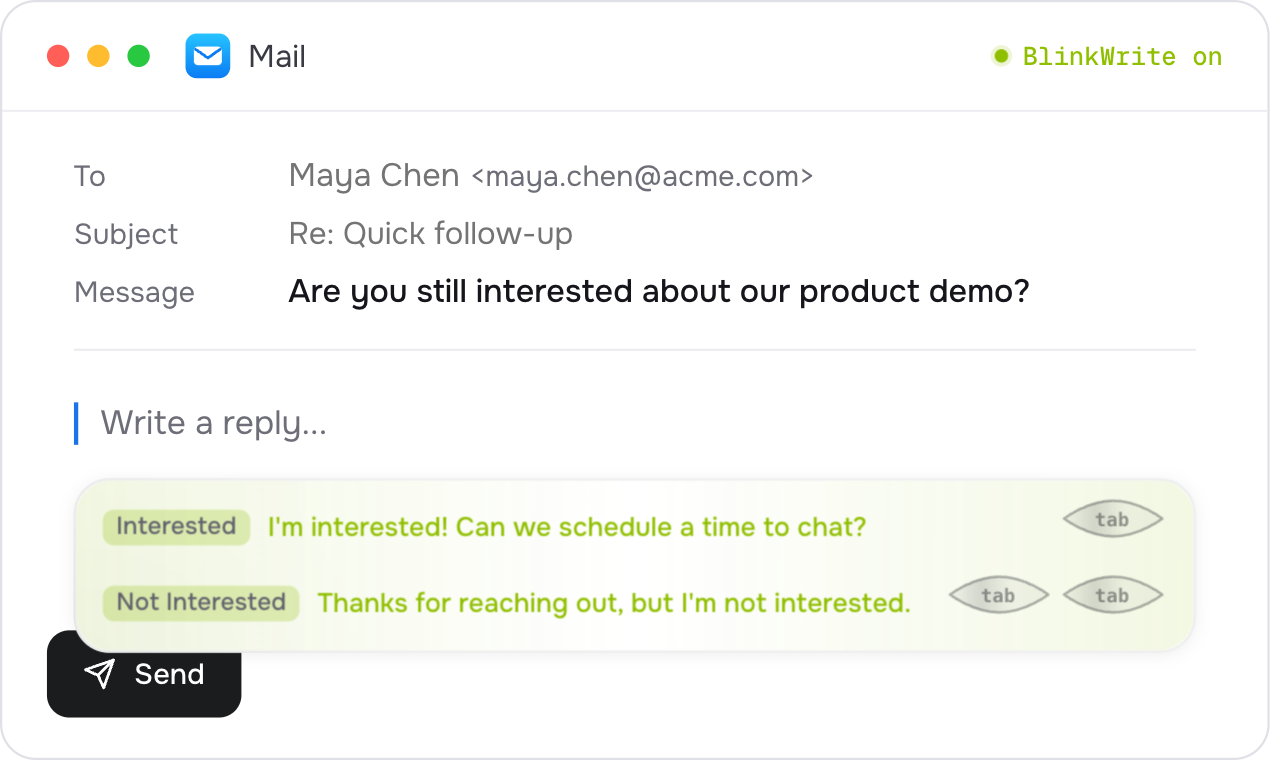
How to trigger it. With automatic proactive enabled, BlinkWrite drafts a reply when you focus an empty reply box in a conversation.
To request a draft yourself, double-tap Tab in the empty reply box. This shortcut works even when Proactive drafts is off globally, for the app, or for the website. It is available by default in apps and websites outside the automatic support list. After you dismiss a suggestion, you can request another without a new message or a waiting period.
Each request uses the current conversation context. If BlinkWrite cannot identify a reply target, it shows No reply suggestion. A pause stops all assistance.
How to use it.
- Press Tab to accept the draft and drop it into the field.
- Start typing to dismiss it and write your own.
- Press Esc to dismiss it.
When there are two ways to reply. Sometimes it isn't clear which way you'd want to go. You could reasonably say yes or no. When that happens, BlinkWrite offers two opposite drafts in the popup and lets you choose:
- Press Tab to use the first option.
- Double-tap Tab (press Tab twice quickly) to use the second option.
Example: a friend messages, "Want to grab lunch at 1?" Either answer makes sense, so BlinkWrite shows both:
- Accept: "Sounds great, see you at 1!" → press Tab.
- Decline: "Can't today, but let's find another time." → double-tap Tab.
Pick whichever matches what you want to say, or just start typing to write your own.
Good to know. Proactive drafts are meant for back-and-forth conversations (chat and email). BlinkWrite holds back when a reply doesn't make sense, for example when the last message was yours, or the message clearly isn't directed at you.
2. Completions
What it does. As you type, BlinkWrite finishes your current sentence or thought, using the surrounding thread, not just your last few words. The suggested continuation appears in a floating popup next to where you're writing.
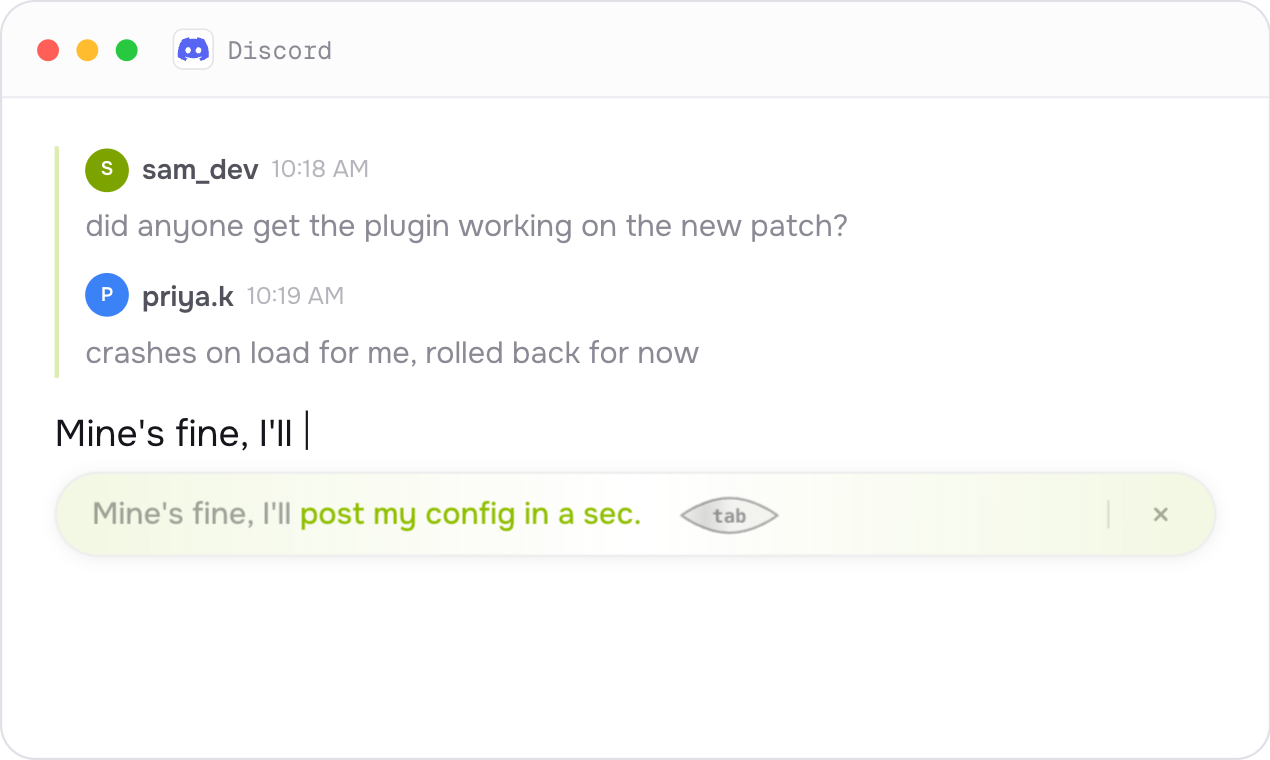
How to trigger it. Completions are automatic. Start writing, and when you pause for a moment, a completion appears. Every keystroke restarts the short wait, so the suggestion shows up once your typing settles.
How to use it.
- Press Tab to accept the completion.
- Keep typing to ignore it. The popup simply gets out of your way.
- Press Esc to dismiss it.
3. Corrections
What it does. BlinkWrite reviews the sentence or paragraph you're working on and fixes spelling, grammar, capitalization, punctuation, and word choice. It uses context to understand what you meant, so the fixes fit your intent rather than applying rules blindly. The corrected version is shown in a floating popup next to where you're writing.
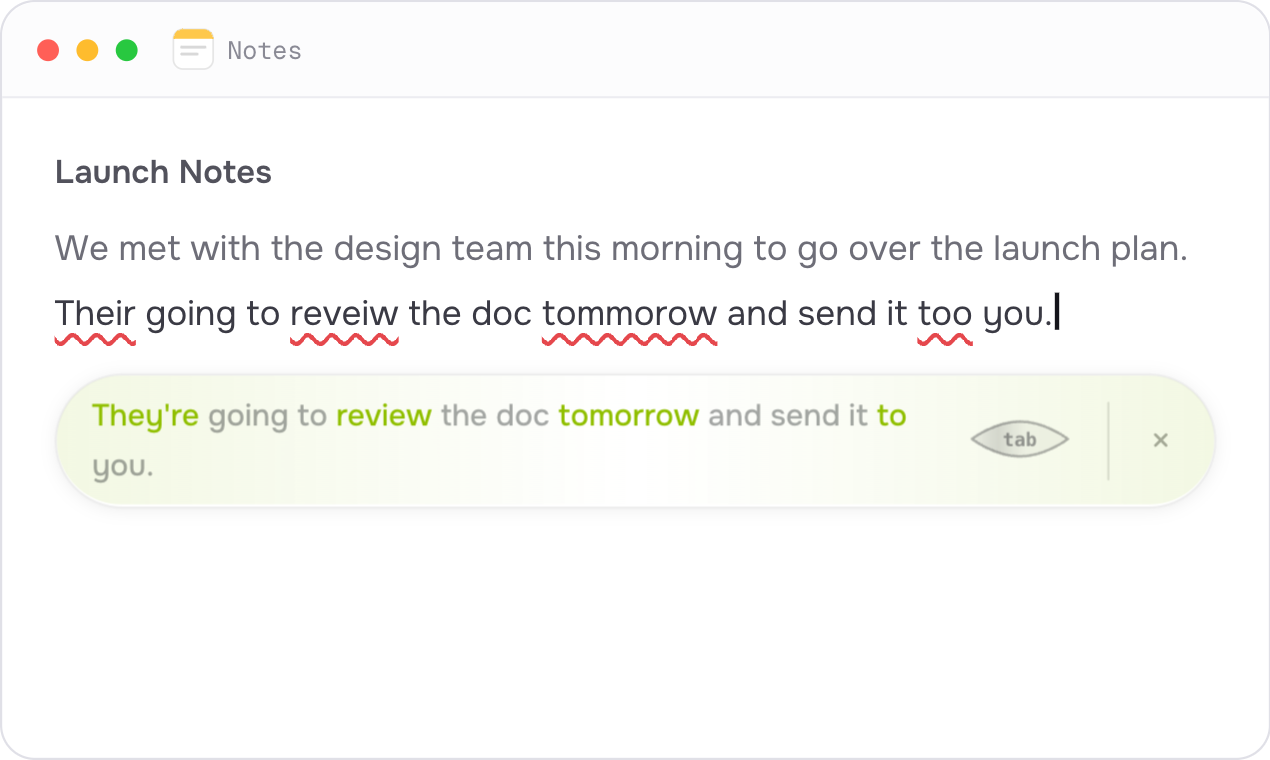
How to trigger it. Corrections are automatic. You don't press anything. A correction is offered when your cursor is at the end of what you've written and either of these happens:
- You end a sentence with a period (
.), question mark (?), or exclamation point (!). The check runs as soon as you type that punctuation. - You pause for about 1 second after typing, even without ending punctuation.
In both cases the cursor needs to be at the end of your text. Corrections don't interrupt you mid-sentence.
How to use it.
- Press Tab to accept the correction and apply the fixes.
- Press Esc to dismiss it and keep your original text.
- Keep typing to move on.
Good to know. If a completion is already on screen, it takes priority. The completion finishes your thought first, and corrections come after.
4. Rephrasing
What it does. Rephrasing improves your current paragraph, makes it shorter, changes its tone, or follows your own instructions. Each mode starts from your original paragraph and keeps the same available conversation or document context.
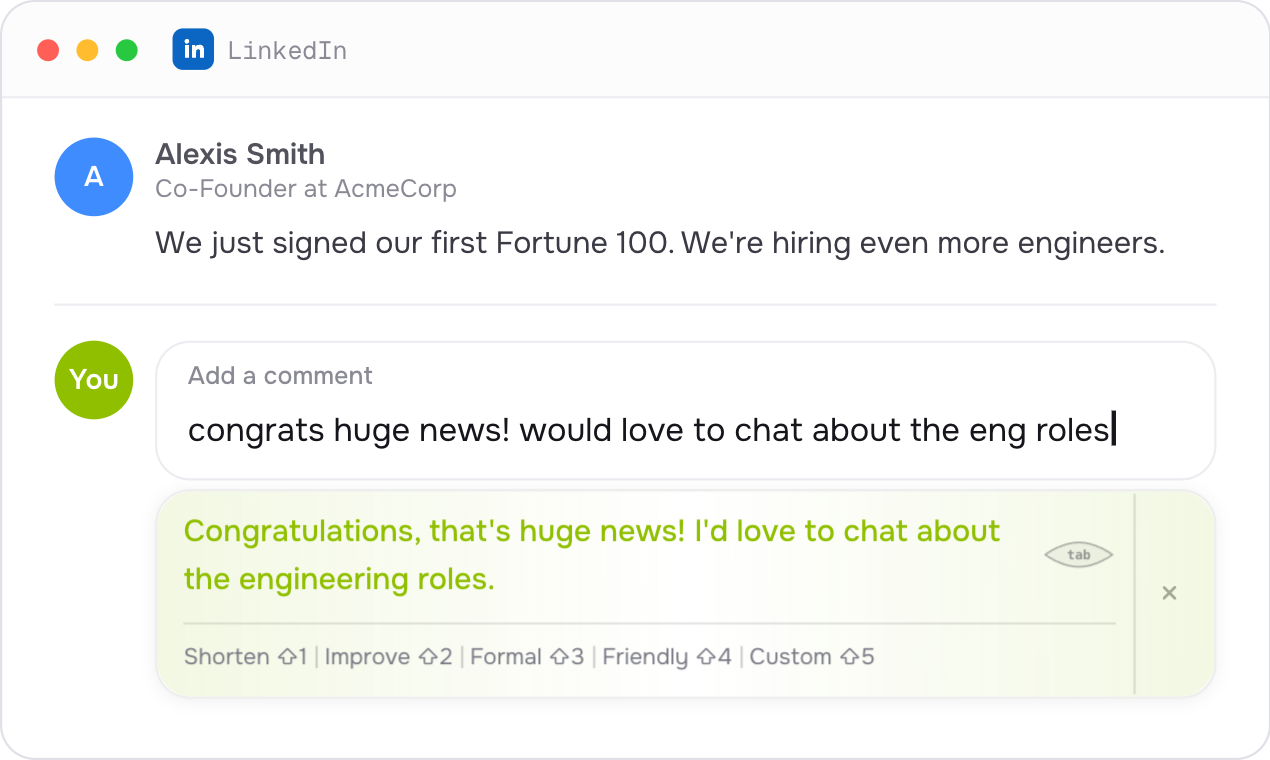
How to open it. Double-tap Tab (press Tab twice quickly) in a paragraph you want to rewrite. BlinkWrite first offers an Improve result.
Choose a rephrase mode
Click a mode below the result, or use its shortcut. These shortcuts work while the rephrase dialog is open.
| Mode | Shortcut | What it does |
|---|---|---|
| Shorten | Shift + 1 | Uses fewer words while keeping the meaning and key details. |
| Improve | Shift + 2 | Improves clarity, grammar, and flow to fit the context. |
| Formal | Shift + 3 | Uses a more professional tone. |
| Friendly | Shift + 4 | Uses a warmer, more casual tone. |
| Custom | Shift + 5 | Follows instructions that you type in the dialog. |
The dialog stays open as you try another mode. A loading indicator replaces the result text until the new preview arrives.
Use Custom instructions
- Click Custom, or press Shift + 5.
- Type your instructions in the field below the modes.
- Press Enter, or click the arrow button, to request the rewrite.
Examples: “Use two short sentences,” “Keep the dates but make this shorter,” or “Translate this into French.” The field accepts up to 1,000 characters.
The cursor stays in the Custom field after you submit the instructions and after the result arrives. You can edit the instructions and press Enter again without reopening the dialog. Each request uses your original paragraph and the same available context.
With Custom still focused, press Tab to apply the changed result to your original paragraph.
Review the result
- Press Tab to apply a changed result to the current paragraph.
- Press Esc, or click ×, to close the dialog without applying it.
If the preview matches the text in your app, the phrase stays visible in the inactive text color. A small checkmark replaces the Tab badge. There is no change to apply, so Tab does not replace your text. You can still choose another mode or give Custom instructions.
Quick reference
| Suggestion | What it does | How to trigger | Accept | Dismiss |
|---|---|---|---|---|
| Proactive draft | Drafts a full reply in an empty field | Automatic, or double-tap Tab in an empty reply box | Tab (or double-tap Tab for the second option when two are shown) | Esc / type |
| Completion | Finishes your current sentence | Automatic (pause while typing) | Tab | Esc / type |
| Correction | Fixes spelling, grammar, wording | Automatic (after . ? !, or a ~1s pause, at the end of your text) | Tab | Esc / type |
| Rephrasing | Shortens, improves, changes tone, or follows Custom instructions | Double-tap Tab, then click a mode or use Shift + 1–5 | Tab for a changed result | Esc / × |
See Controls & shortcuts for the full list of gestures and how to pause BlinkWrite.