Troubleshooting
Most issues come down to permissions, sign-in, or an unsupported field. Here are the common ones and how to fix them.
Where to find BlinkWrite
macOS
BlinkWrite runs from the menu bar, not in the Dock. There's no main window to look for.

The menu bar is the strip at the very top of your screen. On the left:
the Apple menu and app menus. On the right: status icons (Wi-Fi, battery,
the clock, and others). BlinkWrite is the small eye icon
 on the right (highlighted
above). Click it to open the menu.
Windows
BlinkWrite runs from the system tray, at the right end of the taskbar next to the clock. Windows often hides new tray icons, so its icon may be under the up arrow:
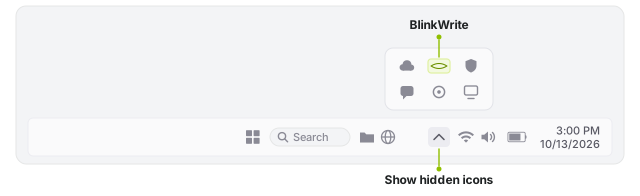
- Click the up arrow (Show hidden icons) next to the clock.
- Click the BlinkWrite eye icon
(highlighted above) to open the menu.
If the eye icon is already on the taskbar, click it there.
Suggestions aren't appearing
Work through these in order:
- Is BlinkWrite paused? Click BlinkWrite's eye icon in the macOS menu bar or Windows system tray. A grey line that starts with Paused, such as Paused until midnight, means BlinkWrite is paused for all apps or for the app or site you're in. Click Resume for all apps, or Resume for that app or site. Settings → Paused apps lists everything you paused.
- On macOS, are the permissions granted? Open System Settings → Privacy & Security and check that BlinkWrite is turned on under Accessibility. Without it, BlinkWrite can't read what you're writing. Also check Screen & System Audio Recording. If a permission is off, BlinkWrite's menu shows Accessibility access needed or Screen Recording access needed. Click the item below it to open the right settings.
- On Windows, is setup finished? Click BlinkWrite's eye icon in the system tray. If the menu says Setup isn't finished, click Finish setup.... If it says Privacy setup didn't finish, click Retry privacy setup. Windows does not need the macOS permissions.
- On Windows, is the app running as administrator? BlinkWrite can't read apps that run as administrator. Close the app and open it again normally.
- Are you signed in? Click BlinkWrite's eye icon in the macOS menu bar or Windows system tray to check your account and plan. If a usage line in the menu ends in · Paused (shown in red), you reached that feature's monthly Free limit; the others keep working. See Some suggestions stopped on the Free plan.
- Give it a moment. Completions and corrections appear when you pause typing; proactive drafts appear a moment after you focus an empty reply box.
Some suggestions stopped on the Free plan
On Free, each writing feature has its own monthly limit. Reaching one pauses only that feature. For example, after 90 rephrases, rephrasing pauses while proactive drafts, completions, and corrections keep working. Click BlinkWrite's eye icon in the macOS menu bar or Windows system tray to see your usage; a paused feature's line is shown in red. Settings → Account also shows when your limits reset.
A paused feature returns at your next monthly reset. To continue now, choose Upgrade to Pro… from the same menu. See Billing & plans.
Rephrasing isn't triggering
Rephrasing is a double-tap of Tab: press Tab twice in quick succession. If only a single accept happens, try tapping the two presses a little faster. Make sure the paragraph has at least 12 characters, or select the text you want to rewrite. See how rephrasing works.
The rephrase mode shortcuts do nothing
Shift + 1 through Shift + 5 select modes only while the rephrase dialog is open. Double-tap Tab in your paragraph first. Then click a mode or use its shortcut. The modes are Shorten, Improve, Formal, Friendly, and Custom, in that order.
The rephrase dialog shows a checkmark instead of Tab
The preview matches the text in your app. BlinkWrite keeps the phrase visible in the inactive text color and shows a checkmark because there is no change to apply. You can try another mode or enter Custom instructions.
Custom instructions do not submit
Click Custom below the result to open the instruction field beneath the modes. The field needs instructions before you can submit it. The limit is 1,000 characters. Enter a shorter instruction, then press Enter or click the arrow button. The cursor stays in the field so you can revise the instructions.
A suggestion accepted when I only meant to indent / move focus
A single Tab accepts the suggestion that's currently showing. If no suggestion is visible, Tab behaves normally. Press Esc first to dismiss a suggestion, then Tab will act as usual.
If you turned on On demand in Settings, pressing Tab twice quickly in an empty text box asks for a reply draft instead of moving on. Turn it off if you use Tab to move through empty fields.
Proactive drafts aren't showing in a conversation
Proactive drafts appear when the reply box is empty and there's a message waiting for your response. BlinkWrite holds back when a reply doesn't make sense, for example when the last message was sent by you, or the message isn't directed at you.
Drafts are designed to appear on any website in a supported browser. In desktop apps, they appear in the apps listed on Supported apps. If a site or app you use still never offers one, tell us on the Feedback page in your dashboard. Include the site or app name so we can look into it.
I want to turn BlinkWrite off temporarily
Click BlinkWrite's eye icon in the macOS menu bar or Windows system tray and choose Pause for all apps, or pause only the app or site you're in. Choose Resume for all apps, or Resume for that app or site, to turn it back on. See Controls & shortcuts.
BlinkWrite asks you to remove a computer
An account can be signed in on up to three computers at a time. When you sign in on a fourth, your browser shows Remove a computer to continue. Click Go to account, remove a computer you no longer use under Computers, then click Try again.
Uninstalling BlinkWrite on Windows doesn't sign that PC out. Remove it under Computers to free its place.
Still stuck?
Open a support ticket from My Tickets in your dashboard. Include your macOS or Windows version, the app you were using, and what happened.